
Recap of Part I
In the first part of this blog series, we explored the basics of integrating Spring AI with large language models. We walked through building a custom ChatClient, leveraging Function Calling for dynamic interactions, and refining our prompts to suit the Spring Petclinic use case. By the end, we had a functional AI assistant capable of understanding and processing requests related to our veterinary clinic domain. Now, in Part II, we’ll go a step further by exploring Retrieval-Augmented Generation (RAG), a technique that enables us to handle large datasets that wouldn’t fit within the constraints of a typical Function Calling approach. Let’s see how RAG can seamlessly integrate AI with domain-specific knowledge.Retrieval-Augmented Generation
While listing veterinarians could have been a straightforward implementation, I chose this as an opportunity to showcase the power of Retrieval-Augmented Generation (RAG). RAG integrates large language models with real-time data retrieval to produce more accurate and contextually relevant text. Although this concept aligns with our previous work, RAG typically emphasizes data retrieval from a vector store. A vector store contains data in the form of embeddings—numerical representations that capture the meaning of the information, such as the data about our veterinarians. These embeddings are stored as high-dimensional vectors, facilitating efficient similarity searches based on semantics rather than traditional text-based searches. For instance, consider the following veterinarians and their specialties:- Dr. Alice Brown - Cardiology
- Dr. Bob Smith - Dentistry
- Dr. Carol White - Dermatology
Fun fact - this example was generated by ChatGPT itself.In essence, similarity searches operate by identifying the nearest numerical values of the search query to those of the source data. The closest match is returned. The process of transforming text into these numerical embeddings is also handled by the LLM.
Generating Test Data
Utilizing a vector store is most effective when handling a substantial amount of data. Given that six veterinarians can easily be processed in a single call to the LLM, I aimed to increase the number to 256. While even 256 may still be relatively small, it serves well for illustrating our process. Veterinarians in this setup can have zero, one, or two specialties, mirroring the original examples from Spring Petclinic. To avoid the tedious task of creating all this mock data manually, I enlisted ChatGPT’s assistance. It generated a union query that produces 250 veterinarians and assigns specialties to 80% of them:data.sql file:
Embedding the Test Data
We have several options available for the vector store itself. Postgres with the pgVector extension is probably the most popular choice. Greenplum—a massively parallel Postgres database—also supports pgVector. The Spring AI reference documentation lists the currently supported vector stores. For our simple use case, I opted to use the Spring AI-providedSimpleVectorStore. This class implements a vector store using a straightforward Java ConcurrentHashMap, which is more than sufficient for our small dataset of 256 vets. The configuration for this vector store, along with the chat memory implementation, is defined in the AIBeanConfiguration class annotated with @Configuration:
VectorStoreController bean, which includes an @EventListener that listens for the ApplicationStartedEvent. This method is automatically invoked by Spring as soon as the application is up and running, ensuring that the veterinarian data is embedded into the vector store at the appropriate time:
-
Similar to
listOwners, we begin by retrieving all vets from the database. -
Spring AI embeds entities of type
Documentinto the vector store. ADocumentrepresents the embedded numerical data alongside its original, human-readable text data. This dual representation allows our code to map correlations between the embedded vectors and the natural text. -
To create these
Documententities, we need to convert ourVetentities into a textual format. Spring AI provides two built-in readers for this purpose:JsonReaderandTextReader. Since ourVetentities are structured data, it makes sense to represent them as JSON. To achieve this, we use the helper methodconvertListToJsonResource, which leverages the Jackson parser to convert the list of vets into an in-memory JSON resource. -
Next, we call the
add(documents)method on the vector store. This method is responsible for embedding the data by iterating over the list of documents (our vets in JSON format) and embedding each one while associating the original metadata with it. -
Though not strictly required, we also generate a
vectorstore.jsonfile, which represents the state of ourSimpleVectorStoredatabase. This file allows us to observe how Spring AI interprets the stored data behind the scenes. Let’s take a look at the generated file to understand what Spring AI sees.
Vet in JSON format alongside a set of numbers that, while they might not make much sense to us, are highly meaningful to the LLM. These numbers represent the embedded vector data, which the model uses to understand the relationships and semantics of the Vet entity in a way far beyond simple text matching.
Optimizing for Cost and Fast Startup
If we were to run this embedding method on every application restart, it would lead to two significant drawbacks:-
Long Startup Times: Each
VetJSON document would need to be re-embedded by making calls to the LLM again, delaying application readiness. - Increased Costs: Embedding 256 documents would send 256 requests to the LLM every time the app starts, leading to unnecessary usage of LLM credits.
vectorstore.json file is located under src/main/resources, ensuring that the application will always load the pre-embedded vector store on startup, rather than re-embedding the data from scratch. If we ever need to regenerate the vector store, we can simply delete the existing vectorstore.json file and restart the application. Once the updated vector store is generated, we can place the new vectorstore.json file back into src/main/resources. This approach gives us flexibility while avoiding unnecessary re-embedding processes during regular restarts.
Implementing Similarity Search
With our vector store ready, implementing thelistVets function becomes straightforward. The function is defined as follows:
AIDataProvider:
-
We start with a
Vetentity in the request. Since the records in our vector store are represented as JSON, the first step is to convert theVetentity into JSON as well. -
Next, we create a
SearchRequest, which is the parameter passed to thesimilaritySearchmethod of the vector store. TheSearchRequestallows us to fine-tune the search based on our specific needs. In this case, we mostly use the defaults, except for thetopKparameter, which determines how many results to return. By default, this is set to 4, but in our case, we increase it to 20. This lets us handle broader queries like “How many vets specialize in cardiology?” -
If no filters are provided in the request (i.e., the
Vetentity is empty), we increase thetopKvalue to 50. This enables us to return up to 50 vets for queries like “list the vets in the clinic.” Of course, this won’t be the entire list, as we want to avoid overwhelming the LLM with too much data. However, we should be fine because we carefully fine-tuned the system text to manage these cases: -
The final step is to call the
similaritySearchmethod. We then map thegetContent()of each returned result, as this contains the actual Vet JSONs rather than the embedded data.
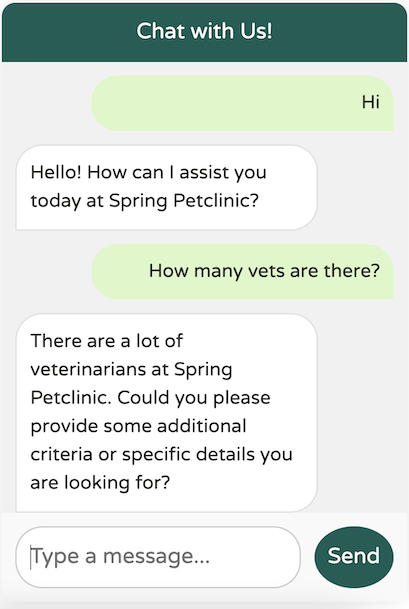 It looks like our system text is functioning as expected, preventing any overload. Now, let’s try providing some specific criteria:
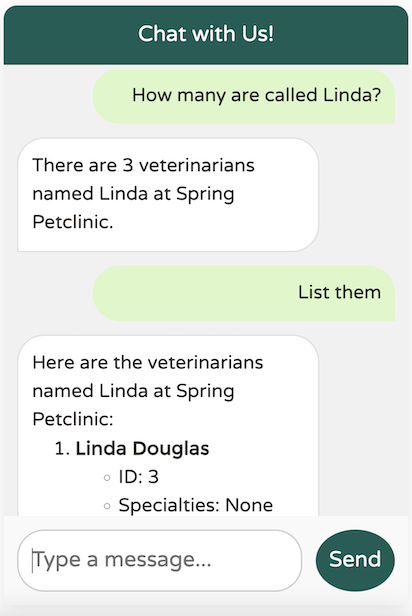 The data returned from the LLM is exactly what we expect. Let’s try a broader question:
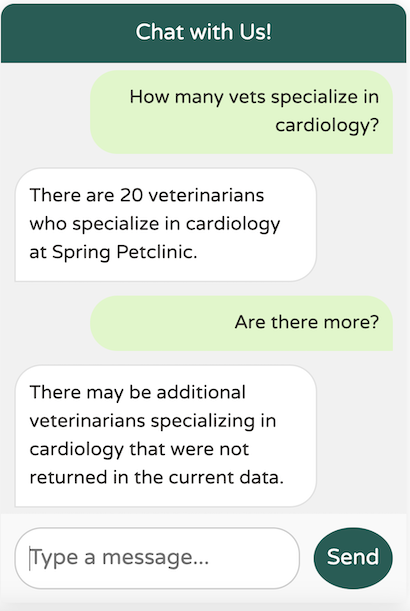 The LLM successfully identified at least 20 vets specializing in cardiology, adhering to our defined upper limit of topK (20). However, if there’s any uncertainty about the results, the LLM notes that there may be additional vets available, as specified in our system text.
Implementing the UI
Implementing the chatbot UI involves working with Thymeleaf, JavaScript, CSS, and the SCSS preprocessor. After reviewing the code, I decided to place the chatbot in a location accessible from any tab, makinglayout.html the ideal choice.
During discussions about the PR with Dr. Dave Syer, I realized that I shouldn’t modify petclinic.css directly, as Spring Petclinic utilizes an SCSS preprocessor to generate the CSS file.
I’ll admit—I’m primarily a backend Spring developer with a career focused on Spring, cloud architecture, Kubernetes, and Cloud Foundry. While I have some experience with Angular, I’m not an expert in frontend development. I could probably come up with something, but it likely wouldn’t look polished.
Fortunately, I had a great partner for pair programming—ChatGPT. If you’re interested in how I developed the UI code, you can check out this ChatGPT session. It’s remarkable how much you can learn from collaborating with large language models on coding exercises. Just remember to thoroughly review the suggestions instead of blindly copy-pasting them.